How to Spot a Phishing Email With Claude
Compare the sender's domain letter by letter with the company's real one, then ask Claude to screen the email before you reply. Here is the prompt I use, and the extra-letter trick it caught.
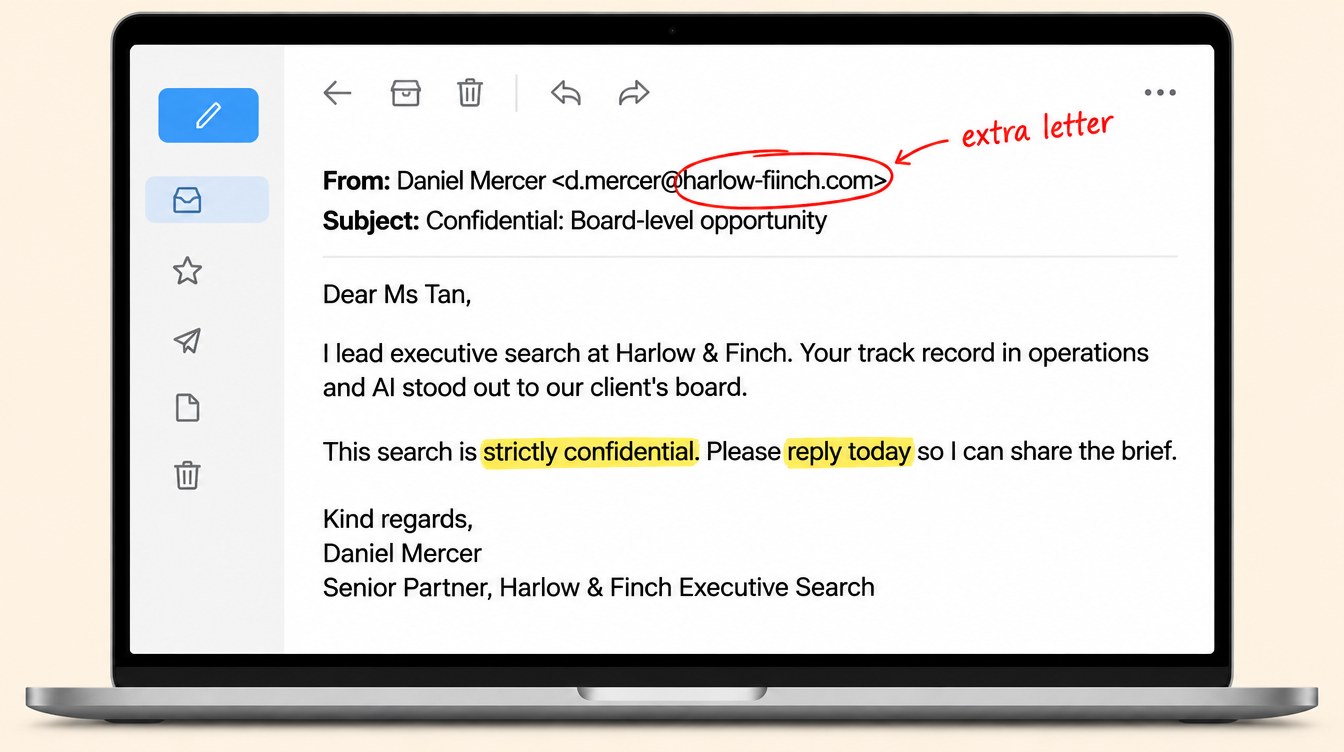
To spot a phishing email, compare the sender's domain letter by letter with the company's real domain, then look for pressure and mismatched links. You can ask Claude to do that check before you reply. Mine caught a look-alike domain with one extra letter that I would have missed at a glance.
Here's what happened, and the prompt you can copy.
What did the phishing email look like?
It came in as a confidential, board-level executive search. It was flattering and specific, and it was accurate about my background.
That's what worries me. It didn't read like spam. It read like someone had done their homework on me.
My Friday OS screens an email and its source before it drafts any reply. Friday OS is the setup I run my week on in Claude. This one it flagged as high risk.
How did Claude know it was a fake?
The sender domain had an extra letter. It was close enough to pass a glance. Claude checked the company's real domain and confirmed the mismatch.
That's called a look-alike domain. The sender's address is one letter off from the real one, so the name looks right in your inbox.
The domain didn't check out, so my reply never went out.
As tech advances, so does phishing.
I had a close friend who lost $70,000 to phishing. It's getting harder to tell with your own eyes, and I don't trust mine on this any more.
How do I get Claude to screen my emails before I reply?
Connect Claude to your Gmail through connectors. Next time something feels slightly off, paste in the email and try this:
Screen emails before I reply. Check the sender's real address against the company's official domain, flag any look-alike tricks, mismatched links or pressure tactics, and give me a verdict, safe, suspicious or high risk, with the reasons. After I give the go ahead, then draft a response in my email.Here's what each part of that prompt does:
- It checks the sender against the company's official domain, so the extra letter shows up.
- It looks for look-alike tricks, mismatched links and pressure tactics, which are the usual giveaways.
- It gives you a verdict (safe, suspicious or high risk) with reasons, so you can judge for yourself.
- It waits for your go-ahead before drafting, so a rushed reply can't go out.
The last line matters most. When an email flatters you, you want to answer fast. This prompt puts a pause between the feeling and the reply.
What should I still check myself?
Claude is a second pair of eyes. It isn't a guarantee.
If an email pushes you to act quickly or keep things quiet, stop and slow down. Flattery plus secrecy is a classic combination. And if it claims to be from a company, go to that company's website by typing the address yourself, not by clicking a link in the email.
If the verdict comes back high risk, don't click anything and don't reply. Delete it, or report it to the company it claims to be from, using contact details you looked up yourself. Then tell your team. If one person got an email like this, others may have too.
If you're not sure, ask Claude to flag anything inconsistent before you reply. A wrong answer costs you a minute. A wrong reply can cost far more.
Can my team learn to set this up?
Yes. Connectors are part of what I teach in my Claude workshop in Singapore, built on your own work rather than a demo. A phishing screen is a good first setup, because everyone in the room has an inbox.
Keep reading: five prompts I use every week, or API vs MCP, explained simply for what a connector is.